EDIT ANY
STEP FILE
A customer's STEP file has no feature history, but it still needs changes. Pick a face and change it: resize a hole to the drill you have, set a fillet to your cutter radius, push a face, move a boss or remove a detail. The faces around it follow.
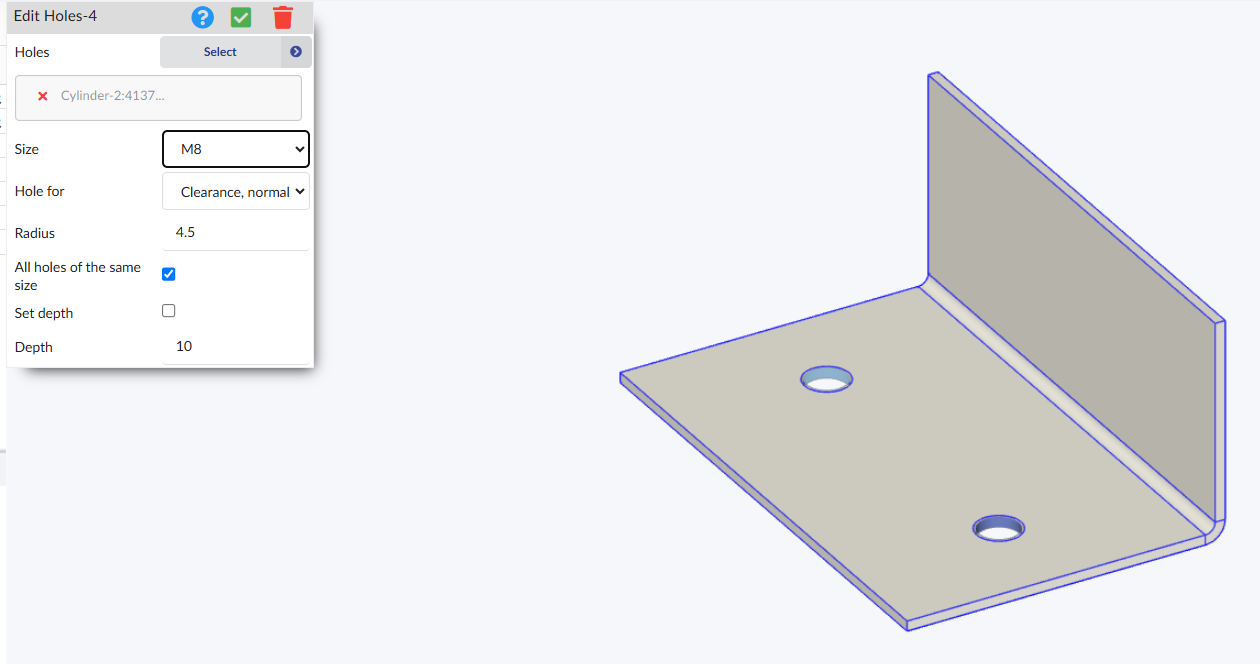
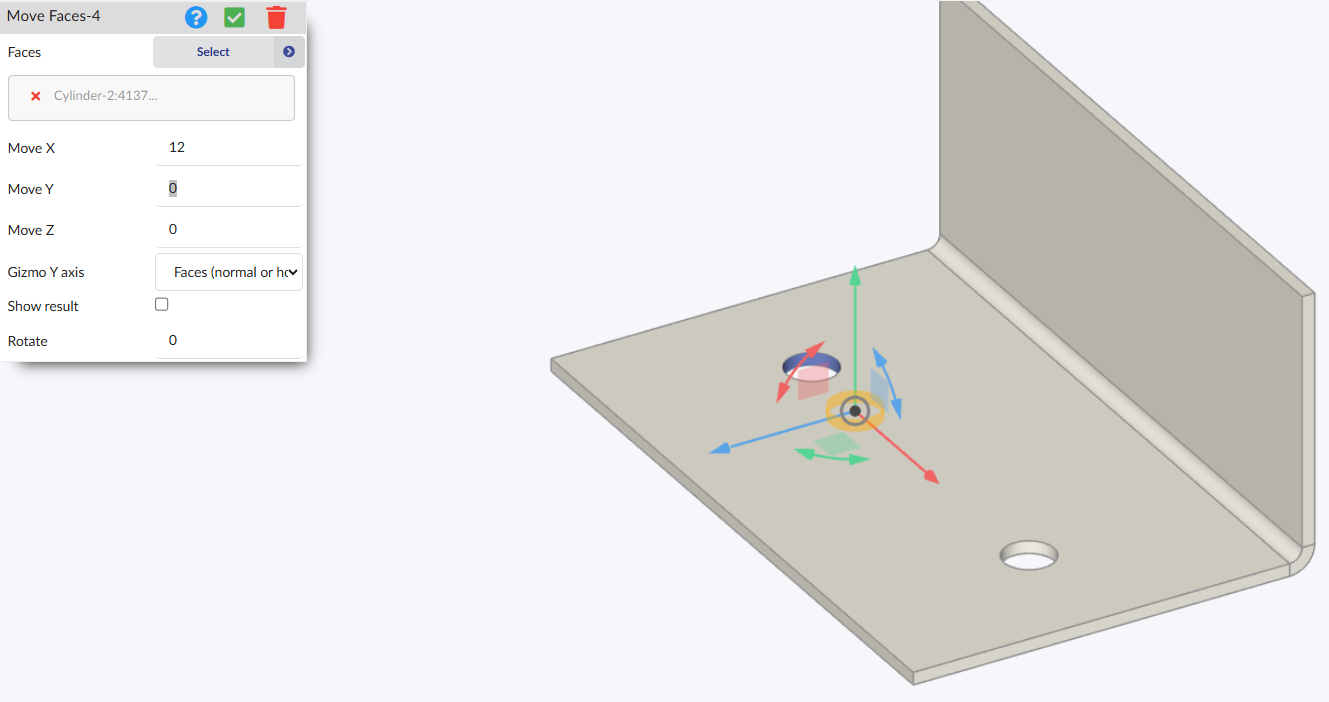
Edit Holes: pick one hole and every hole of the same size follows. Choose M8 and both open to clearance size.
FIVE TOOLS
In the direct editing group at the end of the toolbar. They work on any body: imported or modelled here.
HOW IT WORKS
Edits are history
Each edit is a feature after the import, rebuilt in order like any other. Nothing is baked into the file, so you can reopen an edit and change its value later.
Errors name the face
When the kernel cannot make an edit, the feature says which hole or fillet failed and where. In a group edit the others still change.
Ready for your assistant
Your AI assistant can list the holes and fillets of a part and apply the same edits through the MCP tools: useful for quoting and for batch changes.
WHERE IT FITS
- Matching holes to the drills, taps and fasteners you stock
- Matching fillets to a cutter radius, or removing them before FEA
- Moving, raising or tilting faces of a supplier's part
- Removing small features from an imported body
- Holes with a modelled thread cannot be resized
- Some fillets on imported bodies are refused by the kernel; the feature names them
- A revised STEP file is not yet re-matched to your edits automatically: re-pick the faces